Introduction to CorelDRAW
CorelDRAW is a powerful vector graphic design software widely used by designers, illustrators, and artists for creating visually appealing graphics. Designed to cater to various aspects of graphic design, it offers an array of features that facilitate the creation of complex illustrations, layouts, and typography. Users can leverage its robust drawing tools, color management systems, and text manipulation capabilities to bring their creative visions to life. CorelDRAW stands out for its user-friendly interface, making it accessible to both beginners and seasoned professionals alike.
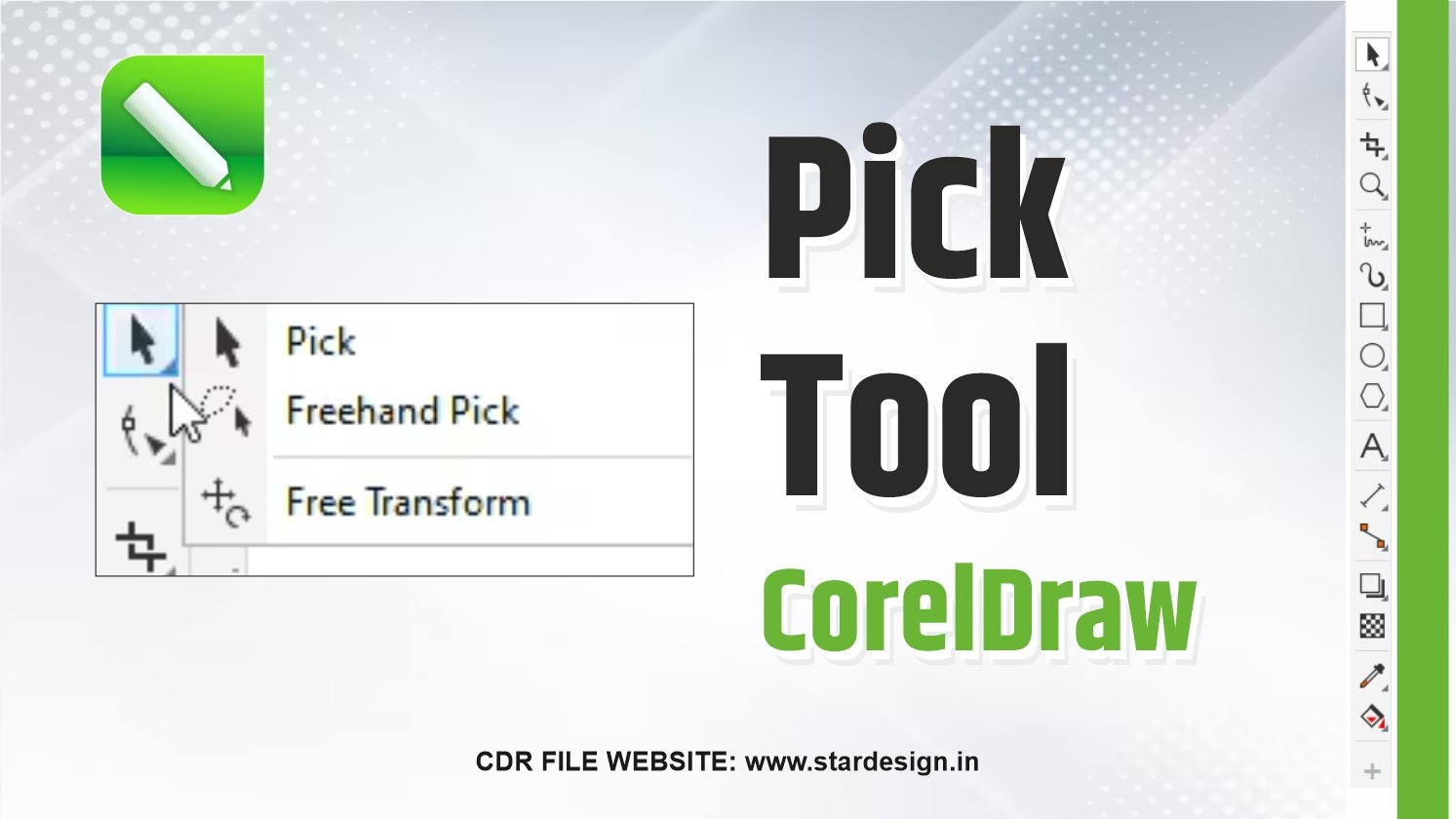
One of the most essential tools within CorelDRAW is the Pick Tool. This tool serves as the primary means of selecting and manipulating objects within the design space. Through the Pick Tool, users can easily move, resize, rotate, and transform various elements of their design. Its intuitive functionality allows for granular control over individual components, making it indispensable for achieving precise edits. As a cornerstone of vector graphic manipulation, the Pick Tool significantly enhances the design workflow, enabling users to navigate and edit their artwork efficiently.
In addition to the Pick Tool, CorelDRAW offers an extensive range of features that complement its design capabilities. These include layer management, which ensures that complex designs remain organized; advanced effects such as gradients and blends; and support for importing and exporting a variety of file formats. Furthermore, CorelDRAW’s compatibility with other graphic design software enhances its utility in professional settings. The ability to integrate various tools and resources establishes CorelDRAW as a comprehensive solution for graphic design projects, ultimately contributing to the enhancement of the user’s creative process.
What is the Pick Tool?
The Pick Tool is a fundamental feature within CorelDRAW, a vector graphic design software that is widely utilized by graphic designers, illustrators, and other creative professionals. This versatile tool serves as the primary means of selecting, moving, and resizing objects within a design workspace. By understanding the functionalities of the Pick Tool, users can enhance their efficiency and effectiveness in performing various design tasks.
When working with CorelDRAW, the Pick Tool allows users to click on individual objects or select multiple items simultaneously. This selection capability is crucial for manipulating elements within a design. As users select an object using the Pick Tool, they gain control over its properties, allowing for adjustments in position, size, and orientation. This flexibility empowers designers to construct intricate layouts and compositions with ease.
Besides moving and resizing, the Pick Tool also facilitates other important functions. For instance, it enables users to group or ungroup elements, allowing for better organization within a design project. Additionally, the Pick Tool supports the alignment and distribution of objects, ensuring a seamless and cohesive appearance across various design components. These capabilities make it an indispensable part of anyone’s design workflow.
For beginners, grasping the basics of the Pick Tool is essential for effective navigation through CorelDRAW’s functionalities. Meanwhile, experienced users will benefit from a reminder of its significance, especially when integrating new techniques or tackling more complex design projects. The Pick Tool not only serves to simplify initial tasks but also reinvents the approach toward intricate layouts and designs, making it a cornerstone in the CorelDRAW environment.
Selecting Objects with the Pick Tool
The Pick Tool in CorelDRAW is a fundamental feature that enables users to interact with various objects in their designs. Mastering this tool is crucial for efficient design manipulation. One of the most straightforward methods of selection is the single object selection. To select an individual element, users simply click on the object with the Pick Tool. This approach allows for modifying, moving, or resizing the object seamlessly.
For those instances where multiple objects need to be selected, CorelDRAW provides convenient options by utilizing the Shift and Ctrl keys. Holding down the Shift key while clicking allows users to add to their selection, enabling a continuous selection process. Conversely, the Ctrl key facilitates the deselection of objects within an already selected group. These keyboard shortcuts enhance the selection process, making it versatile and user-friendly.
Groups can also be selected entirely using the Pick Tool. When an object is part of a group, clicking on any object within that group will highlight the entire set. This feature is beneficial for managing complex designs where multiple elements are frequently adjusted together. For more efficient handling of grouped objects, users should ensure that group selections remain intact during modifications.
Another common challenge is selecting objects that may be obscured by others. To overcome this issue, users can either temporarily hide the topmost objects or use the Object Manager to select hidden elements directly. Additionally, utilizing the Ctrl + click method allows users to select underlying objects without altering the position of the topmost objects. By understanding these selection techniques, users can significantly enhance their proficiency in navigating and editing their designs in CorelDRAW.
Moving Objects with the Pick Tool
The Pick Tool is an essential feature in CorelDRAW that allows users to manipulate objects effortlessly. By first selecting the desired object with the Pick Tool, users can then drag it to a new location on the canvas. This simple action serves as the foundation for object repositioning, enabling users to adjust layouts and designs according to their artistic vision. When dragging, it is crucial to maintain a steady hand to avoid unintended movement and misplacement of elements.
Additionally, for precise movements, users have the option to utilize the arrow keys on their keyboard. Tapping the arrow keys allows for incremental adjustments of the selected object, resulting in meticulous positioning. This method is particularly useful when fine-tuning layouts or aligning smaller elements within a larger composition. Employing arrow keys provides a level of control that dragging may not always achieve, especially in detailed projects where precision is paramount.
The alignment guides in CorelDRAW are another invaluable asset when moving objects. As users drag or reposition elements, these guides provide visual indications that assist in aligning objects relative to one another. This can be particularly helpful for ensuring that items are symmetrically placed and evenly spaced, which can significantly enhance the aesthetic quality of the design. Furthermore, these guides can be customized to meet specific design needs, ensuring that all elements are harmoniously aligned.
CorelDRAW also features a Snap feature that enhances the accuracy of object placement. When active, this feature causes objects to attract to nearby elements, grid lines, and alignment guides as they are moved. This snap effect greatly aids in positioning objects accurately, reducing the risk of misalignments and ensuring that the final composition meets the desired specifications. By mastering the mechanics of moving objects with the Pick Tool, users will find themselves equipped to create more cohesive and polished designs.
Resizing and Transforming Objects
The Pick Tool in CorelDRAW serves as a fundamental instrument for resizing and transforming objects within your design space. Understanding how to effectively utilize this tool can greatly enhance your design capabilities. When resizing objects, one of the key considerations is the maintenance of the aspect ratio. By holding down the Shift key while dragging a corner handle, you can ensure that the proportions of the object are preserved. This feature is particularly useful when working with logos or images that require a specific size without distortion.
In addition to simple resizing, the Pick Tool allows for rotation of objects. To rotate an object, simply hover near one of the corner handles until a rotation cursor appears. You can then click and drag. For precise adjustments, you can also use the Property Bar to input exact rotation degrees. This capability is essential for creating dynamic layouts or when aligning objects at specific angles.
Another transformation feature available in CorelDRAW is reflection. You can achieve this by selecting your object and using the Mirror options found typically on the Property Bar or through the menu. Reflecting an object horizontally or vertically can create symmetry and balance in your designs, opening a pathway to more visually appealing compositions.
Combining resizing, rotation, and reflection can lead to unique design outcomes that stand out. For instance, creating a series of mirrored and rotated shapes can add depth and interest to a graphic element. Experimenting with different combinations not only fosters creativity but can also result in innovative designs that capture viewers’ attention effectively.
Using the Property Bar with the Pick Tool
The Property Bar in CorelDRAW serves as a crucial component when utilizing the Pick Tool, offering an array of options that enable users to modify and enhance the selected objects efficiently. When employing the Pick Tool, selecting an object unlocks a variety of features tailored for customization right on the Property Bar. This functionality is vital for users aiming to create visually appealing designs with precise control over object properties.
Among the key options accessible through the Property Bar are fill color settings, which allow users to swiftly apply different colors and patterns to their selected objects. This feature not only plays a significant role in the overall aesthetic of the design but also assists in thematic and branding consistency across graphic projects. Additionally, the Property Bar provides options for changing stroke styles, including line thickness, type, and dashes, which are essential for defining the outlines of shapes and illustrations.
Furthermore, the Property Bar accommodates adjustments to other properties, such as transparency levels and effects like shadows and highlights. These features enable users to manipulate the object’s appearance elaborately, making it easier to achieve the desired visual impact. The inclusion of alignment and distribution tools also highlights how the Property Bar enhances the functionality of the Pick Tool, ensuring that users can align multiple objects accurately in relation to each other.
Overall, understanding how to leverage the Property Bar alongside the Pick Tool is indispensable for anyone looking to optimize their workflow within CorelDRAW. By utilizing these features effectively, users can significantly elevate their design output, ensuring that every element is not only functional but also visually compelling, paving the way for a polished final product.
Advanced Techniques with the Pick Tool
The Pick Tool in CorelDRAW is a fundamental feature for object manipulation, offering a range of advanced techniques that can significantly enhance design productivity. One of the quickest ways to improve workflow is by mastering keyboard shortcuts associated with the Pick Tool. For example, pressing the “V” key after selecting an object will set its position to the vertical center of the page, while the “H” key will align objects horizontally. Familiarizing yourself with these shortcuts allows designers to make precise adjustments swiftly, thereby streamlining their processes.
Another valuable technique involves efficient object grouping, an essential step for managing complex designs with numerous elements. To group objects, simply select the desired elements using the Pick Tool, and then hit “Ctrl + G.” This functionality allows you to treat multiple objects as a single entity, making it easier to move or transform them collectively. Furthermore, grouping can also help maintain organization in your workspace by reducing clutter, enabling designers to focus on their projects without distractions.
Additionally, integrating the Pick Tool with other CorelDRAW tools can lead to enhanced efficiencies. For instance, when working with the Shape Tool, using the Pick Tool to select an object first allows the designer to smoothly transition between moving and editing elements. This synergy helps to maintain a fluid workflow as adjustments can be made without shifting focus away from the primary task. Implementing these advanced techniques with the Pick Tool not only maximizes ease of use but also augments overall project execution, ultimately yielding superior design outcomes.
Common Challenges and Troubleshooting
Working with the Pick Tool in CorelDRAW can present several challenges, particularly for users unfamiliar with its functionalities. One of the most common issues is selecting multiple overlapping objects. When objects are closely stacked, the ability to select one without inadvertently selecting another becomes problematic. A useful approach to resolve this is by using the CTRL key while clicking on each object individually. This allows users to precisely choose and manipulate each layer without confusion. Alternatively, users can take advantage of the Object Manager docker, which provides a visual representation of all objects in the document, enabling easier selection.
Another issue often encountered is managing locked objects. When an object is locked, it becomes unresponsive to standard selection methods, impeding progress. Users can quickly identify locked items through the Object Manager, where a small padlock icon indicates their status. To unlock an object, right-click on it in the Object Manager and select ‘Unlock.’ This ensures that users can freely modify their designs. Should there be a need to lock objects again for organizational purposes, this can be done to avoid accidental alterations during the design process.
Misalignment can also pose significant challenges when using the Pick Tool. This may occur when objects are accidentally shifted, leading to an unintentional change in the overall layout. Users can address misalignment issues by providing snap controls, which guide the placement of objects in relation to one another. Additionally, the alignment tools available in the property bar assist in aligning objects consistently. Users should frequently check their alignment settings to ensure uniformity across their design. By applying these troubleshooting techniques, CorelDRAW users can overcome prevalent challenges and enhance their overall design experience with the Pick Tool.
Conclusion
Mastering the Pick Tool in CorelDRAW is vital for any designer looking to enhance their efficiency and creativity. Throughout this guide, we have explored the various functionalities of the Pick Tool, emphasizing its role as a foundational element in the design process. This versatile tool not only allows for the selection and manipulation of objects, but also simplifies complex tasks such as grouping, aligning, and transforming elements within a design. By effectively utilizing the Pick Tool, users can streamline their workflow, saving time and reducing frustration.
Furthermore, the Pick Tool’s ability to interact seamlessly with other tools in CorelDRAW provides a cohesive experience that fosters creativity. By combining it with tools such as the Shape Tool and the Color Palette, designers can elevate their work, ensuring that they achieve their desired aesthetic outcomes. The exploration of advanced techniques such as object rotation, duplication, and stacking order management also illustrates how this single tool can significantly impact overall design quality.
To truly harness the potential of the Pick Tool, practice is essential. We encourage readers to implement the techniques outlined in this guide in their own projects, experimenting with various features to discover new ways to improve their designs. As users become more familiar and confident with the tool, they may find themselves approaching design challenges with greater creativity and efficiency. Ultimately, by integrating the Pick Tool into your daily workflow, you can unlock new possibilities and push the boundaries of your artistic endeavors.